


Rental catalogue
Organize rentable products, categories, pricing context, and the details teams need before committing stock.
Coordinate rentable products, availability, reservations, issue, return, damage, renewal, customer history, and supporting inventory across teams and locations.
These privacy-reviewed captures come from the original web app, use safe demonstration data, and keep the platform navigation in view so the surrounding workflow remains clear.
Tour all 13 modulesThe reviewed Plus session exposes Rental in the native platform switcher; a Rental module screen was not captured.
Open the Plus app tour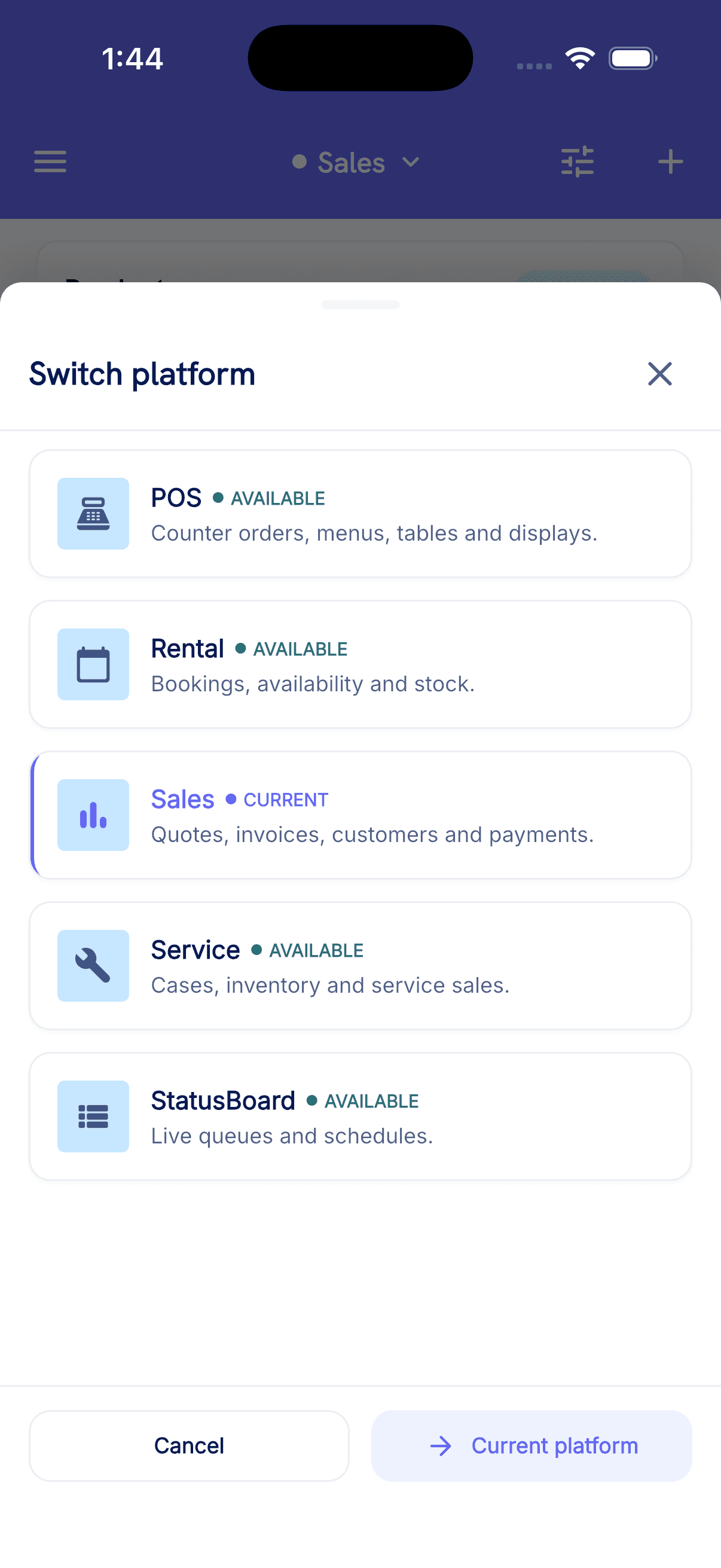
Rental keeps time-bound availability and physical item movement connected to the customer and commercial record. Teams can see what is available, what is committed, what has been issued, and what needs attention through return or renewal.
Start with the modules your workflow needs and keep the surrounding business context connected as the platform expands.
Organize rentable products, categories, pricing context, and the details teams need before committing stock.
Review schedule-aware availability and record reservations against the relevant customer and period.
Track the operational handoff and return of rental items with the surrounding booking context.
Record exceptions, extend active rentals, and keep the lifecycle visible to commercial and operations teams.
Identify the required rental items and review whether they are available for the intended period.
Connect the customer, dates, products, commercial terms, and supporting documents.
Prepare and hand over the committed items while preserving the booking and inventory relationship.
Complete the return, record condition or damage, or extend the rental when the work continues.
Exact module availability, configuration, and data scope are confirmed for each implementation.
Use the product tour for a broader suite walkthrough or continue to the closest focused product or solution page.
Run structured B2B selling and direct B2C transactions with shared customers, products, inventory, documents, suppliers, and reporting.
View SalesCoordinate intake, customer and product context, technicians, status movement, documents, notes, commercial activity, and service history.
View ServiceBring leads, customer history, follow-ups, communications, quotations, campaigns, and decision-support context into one connected CRM workflow.
View ConnectCRMTell us which teams, locations, modules, and customer journeys you need to connect. We will shape the demo around that operating context.